

Today
Read the daily work queue, the campaign readiness card, the Find leads panel, and the workspace activity summary on the GTM Brain home screen.
Today answers the operator's first question: what needs attention now? It is the first row under GTM Brain in the sidebar and the right place to start every session.
The screen has four parts, in the order you meet them:
- the work queue — ranked open work with one action each;
- the campaign readiness card — whether a dry run can start and what state it is in;
- Find leads — optional outbound discovery, collapsed by default;
- Workspace activity and history — the durable metrics, collapsed by default.
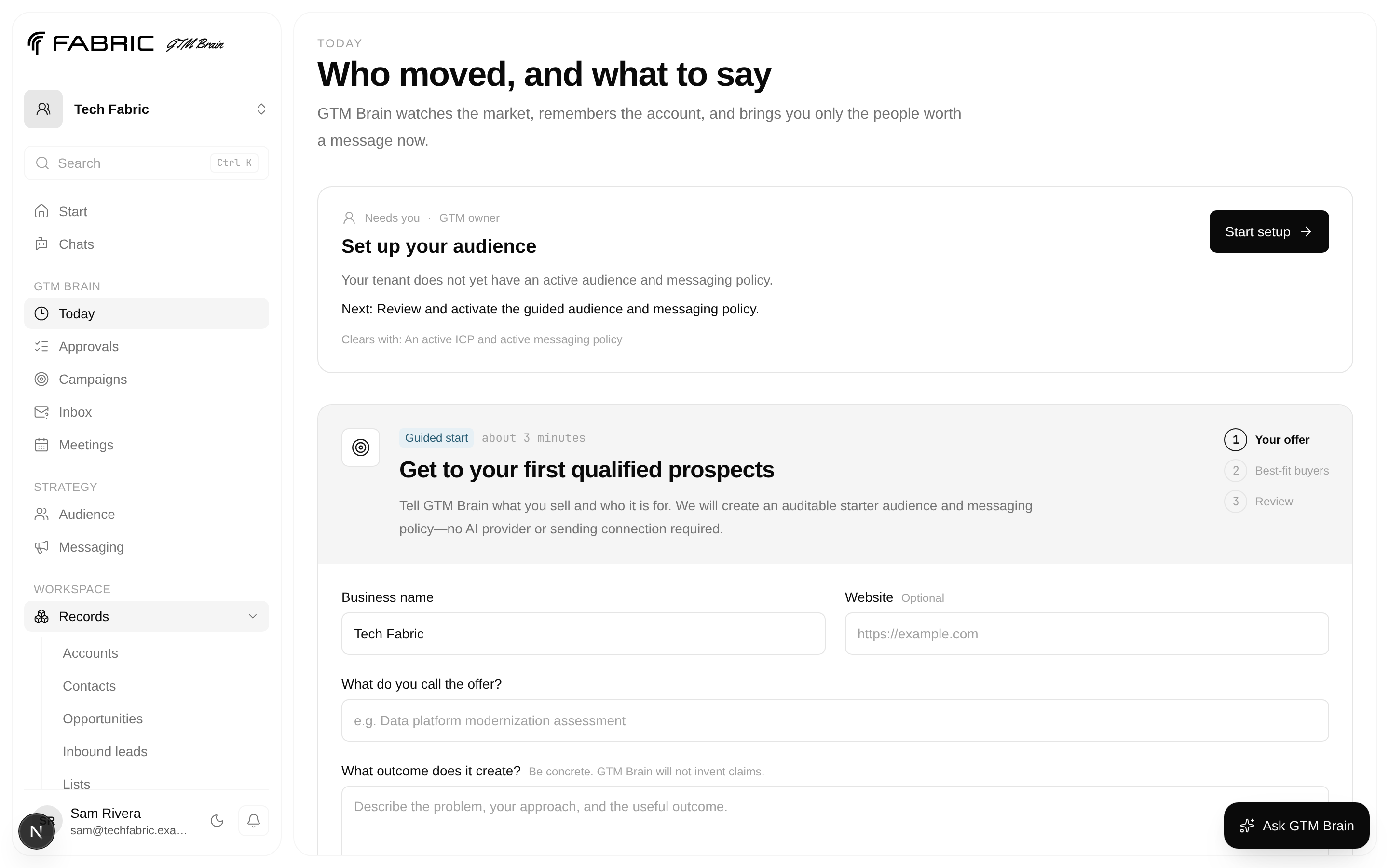
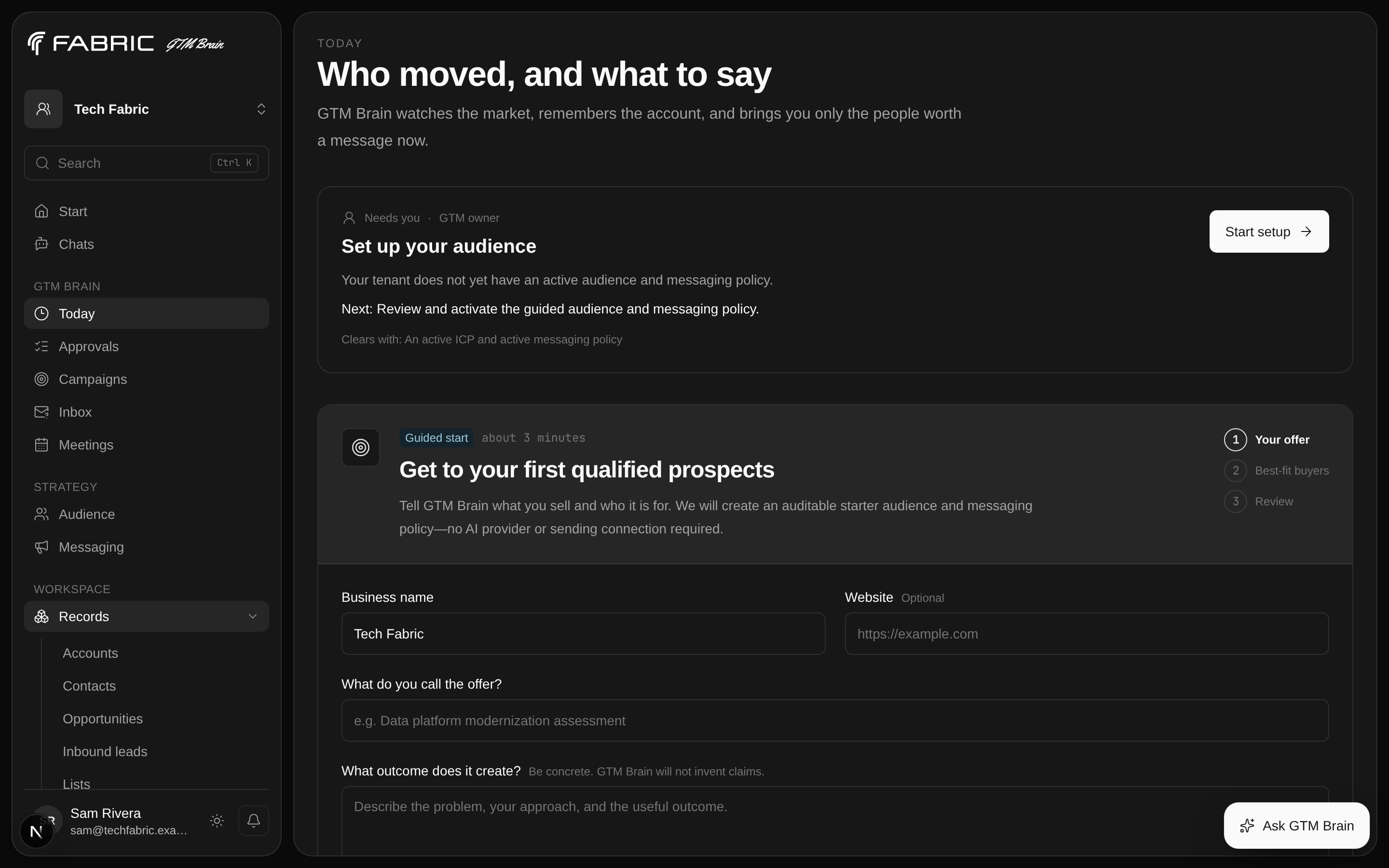
Read the work queue
The queue is the primary content. Each item states the problem, the impact, and one next step, and carries a status and an owner:
| Status | Meaning | Your response |
|---|---|---|
| Needs you | A human decision is required before anything can advance | Take the action on the row |
| Ready for agent | An agent is eligible to pick this up | Nothing — or start it yourself from the row |
| Agent working | A bounded agent is running now | Nothing; the row refreshes on its own |
| Waiting | Parked on an external event, such as a vendor webhook | Nothing |
| Blocked | Work stopped and recorded why | Read Why work stopped and follow Next |
| Completed | Finished recently, kept for context | Nothing |
The highest-priority item is promoted to the top as a full card. The rest are grouped underneath as Needs you, Agents working, Waiting, and Completed recently. A blocked item shows its blocker code and recovery code, so you can hand an exact identifier to an operator instead of describing a symptom.
Each row owns exactly one action. Selecting it either performs a governed operation or opens the screen where the decision belongs — Approvals for a shortlist, Campaigns for a campaign gate, Inbox for a reply, Meetings for a calendar item, or Workspace → Operations → Automation for a recovery attempt.
Read the campaign readiness card
Below the queue, one card reports whether the organization can start a pass and what happened last time. It is always labelled Dry run · nothing sends.
| Badge | Meaning |
|---|---|
| Ready to find accounts | No shortlist yet; you can start one |
| Finding accounts | A pass is running now |
| Ready to review | A shortlist is waiting in Approvals |
| All caught up | The current shortlist is fully resolved |
| Some checks need another try | The pass completed with incomplete checks |
| Audience needed | No active audience, so nothing is eligible |
| Try again | The last attempt failed and recorded why |
The card's single button changes with that state: it either starts the dry run or opens Approvals. Application-started passes are always dry-run, so sensing, judgment, drafting, and approval all exercise without live delivery.
A new organization sees setup first
Until activation is complete, the readiness card is replaced by the guided activation panel, which collects your business, offer, and target customer and produces a first audience. Finish that before looking for a shortlist.
Find leads
Outbound discovery is a collapsed panel headed Find leads. Expand it to search your saved audience for a specific person or company.
- Choose an audience-generated example, or describe a cohort in plain language.
- Select Find leads to preview named people, employer, buyer-title match, and contactability.
- Review, select up to ten people, and confirm the governed import.
Selecting an example only fills the query — Apollo is not called and no provider-read credits are reserved until you choose Find leads. GTM Brain never shows an email address in the preview. The counter reports remaining Apollo read credits.
This panel is where an operator builds an audience on demand. It is deliberately not a sidebar row, because the daily loop starts from the queue rather than from search.
Workspace activity and history
Expand this section for the durable metrics. They are collapsed by default so the queue stays the focus of the screen.
| Metric | Meaning | Operator response |
|---|---|---|
| Accounts | Total accounts in the organization's memory | Confirm the signal source is producing the expected universe |
| In play | Accounts no longer in cold state | Investigate unexpected movement in Pipeline or Accounts |
| Awaiting approval | Drafts with pending status | Open Approvals and resolve the queue |
| Sent | Drafts recorded as sent | Compare with delivery and outcome records |
| Live sends today | Non-dry-run sends in the last 24 hours | Watch the daily cap and inbox ramp |
| Dry-run | Simulated sends in the last 24 hours | Use these to validate workflow behavior safely |
| Strongest signal | Highest current learned bucket weight | Compare with actual outcomes before changing strategy |
The daily cap defaults to 50 unless GTM_DAILY_SEND_CAP is configured as a plain integer from 1
to 500. Invalid values fail startup closed. Inbox-specific ramp policy can produce a lower effective
limit.
The same section lists the account pipeline. Each account card shows its company identity, domain,
latest why now evidence, signal bucket, and latest governed Qualification n/100 score — a
deterministic qualification score on a 100-point scale, not a contact ID or record count. Select a
card to open the evidence-rich account workspace without leaving Today.
Columns are funnel states. They do not move because a card was viewed; state changes occur only through governed actions such as approved delivery, inbound reply processing, outcome recording, or suppression.
Read recent pass status
A running pass exposes its current phase:
learning → sensing → judging → awaiting-approvals → resolving → doneawaiting-approvals is not a stalled workflow. It is a durable pause waiting for human decisions. The
row also reports the number of pending drafts when the Temporal worker is queryable.
If Temporal is temporarily unavailable, persisted account and draft metrics can still render while pass status is incomplete. Use the production runbook to distinguish a worker outage from an empty campaign.
Ask GTM Brain
The assistant is available from every GTM screen, not just this one — select Ask GTM Brain in the lower corner, or open Chats for persisted organization-scoped threads. Use concrete prompts:
Which accounts have a funding signal and no prior touch?
Why is northstar.ai awaiting approval?
What changed in the most recent campaign pass?
Which drafts are blocked by suppression or missing delivery configuration?
Chat does not bypass the governed action pipeline. It can request a dry run for an active campaign only after the operator approves the exact campaign ID and version shown in chat; the resulting Temporal workflow is hard-coded non-live. Use Approvals for draft decisions and Inbox for outcome decisions. Chat cannot enable delivery or send email.
Example: morning review
- Open Today and clear everything under Needs you.
- Expand Workspace activity and history and check Awaiting approval and Live sends today.
- Inspect the strongest signal bucket for unexpected weight drift.
- Open any running pass parked in
awaiting-approvals. - Review pending drafts in Approvals against Signals and Accounts.
- Resolve Inbox before starting another pass, so the next judgment uses current outcomes.
Next: Accounts, Approvals, and Campaign pass workflow.
Navigate the application
A map of the GTM Brain sidebar, the four Workspace groups, the command palette, and the routes a revenue operator actually walks each day.
Accounts and account memory
Use account records to understand signals, scores, plays, contacts, touches, replies, outcomes, and the evidence behind every GTM decision.