

Navigate the application
A map of the GTM Brain sidebar, the four Workspace groups, the command palette, and the routes a revenue operator actually walks each day.
GTM Brain keeps the everyday path short and puts everything else behind four named groups. All views are scoped to the active organization; switching organizations changes the leads, campaigns, replies, meetings, integrations, approvals, and outcomes you can see.
The sidebar at a glance
Start                    ← your organization home
Chats                    ← organization-scoped assistant threads
Search            ⌘K     ← jump to any screen by name

GTM BRAIN
  Today                  ← the daily work queue
  Approvals              ← decide on drafts
  Campaigns              ← build and launch
  Inbox                  ← replies
  Meetings               ← booked outcomes
  Connect an agent       ← pair any outside agent
  Team & agents          ← approve, pause, or replace access

STRATEGY
  Marketing workspace     ← website-to-strategy starting point
  Audience               ← who is eligible
  Messaging              ← offers and proof

WORKSPACE
  Records       ▸        Accounts · Contacts · Opportunities · Inbound leads · Lists
  Intelligence  ▸        Pipeline · Signals · Visitor intent · Up next
  Library       ▸        Knowledge · Skills · Notes · Tasks
  Operations    ▸        Artifacts · Agent operations · Automation · Integrations · Data model

Help · Organization settings · Account settings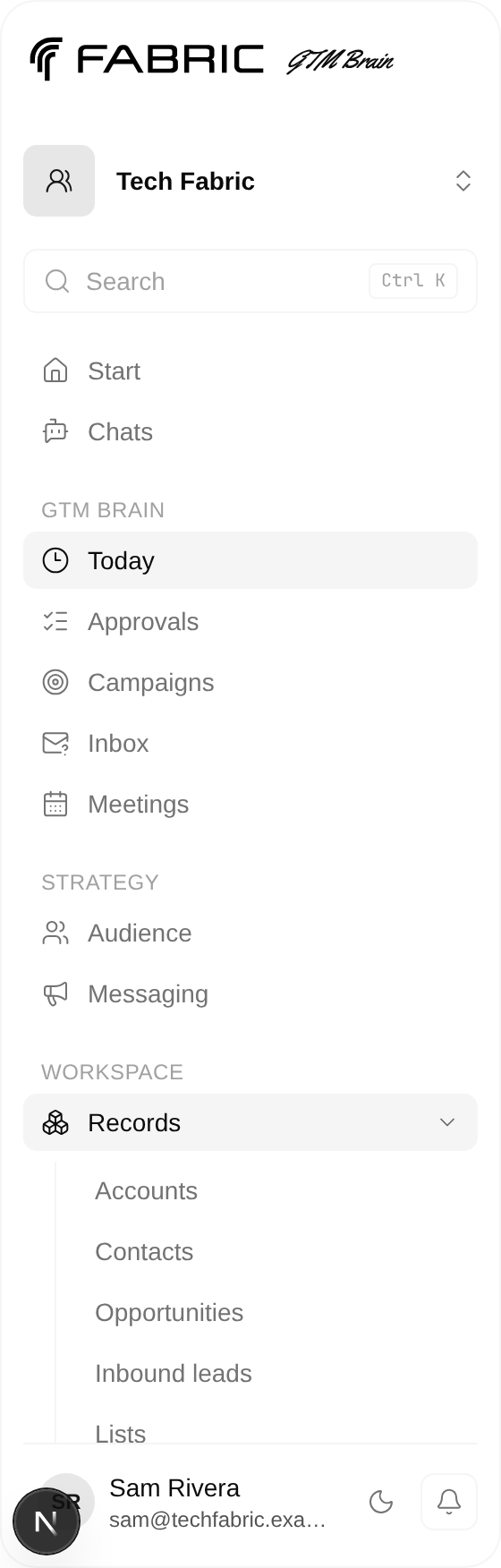
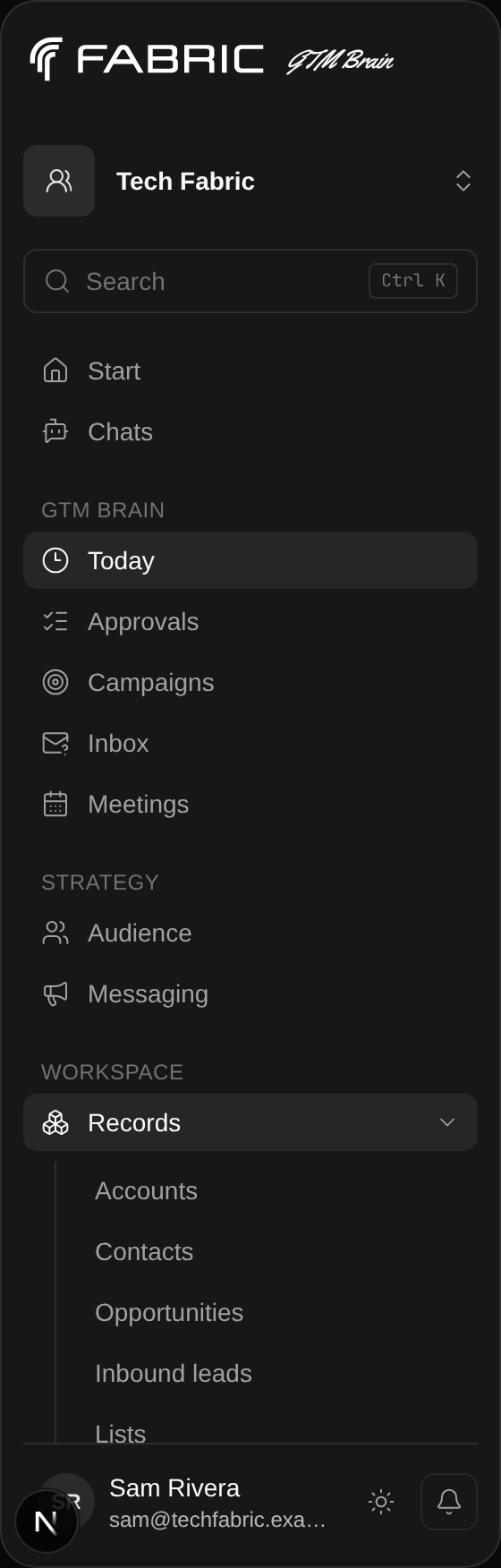
Connect an agent and Team & agents are intentionally visible in the main GTM Brain section. You do not need to hunt through Operations or Organization settings to connect an outside agent. Connect an agent starts the pairing flow; Team & agents is where an administrator reviews, narrows, pauses, or replaces access. Agent operations is deliberately separate: it shows the built-in GTM specialists and runtime evidence, not outside-agent enrollment.
Every screen carries the same name in the sidebar, in the browser tab, and in this documentation. If you read Approvals here, you are looking for the sidebar row labelled Approvals.
The everyday five
| Screen | Use it when you need to… |
|---|---|
| Today | see what needs you and what an agent is already working on |
| Approvals | decide on the shortlist of drafts before anything can send |
| Campaigns | create, check, confirm, safe-test, and launch a campaign |
| Inbox | review classified replies and record the next outcome |
| Meetings | track meetings created from governed outcomes |
Most operators spend the whole day in these five. Today is the correct place to start every session: it ranks the open work, names the owner of each item, and gives each one a single action.
Strategy decides who hears from you
Marketing workspace, Audience, and Messaging are not advanced tools, which is why they sit outside Workspace.
-
Marketing workspace reads a public website and active workspace knowledge, then creates reviewable audience and messaging proposals. It never activates a proposal automatically.
-
Audience holds your versioned ideal customer profile — the company size, geography, industry, buyer roles, and exclusions that decide eligibility. Nothing enters a campaign that the active audience does not admit.
-
Messaging holds your offers, proof assets, and approved positioning. A drafter may only use wording that has been approved here for the selected offer.
Change either one and the next campaign pass judges against the new version. Existing approved artifacts and locked manifests stay immutable.
Workspace holds four groups
Workspace is not a screen. It is four disclosure rows, each holding four or five related views. Selecting a group row opens or closes it in place — it never navigates you somewhere. A group you open stays open as you move around, and the group holding your current screen opens itself.
| Group | Contains | Reach for it when |
|---|---|---|
| Records | Accounts, Contacts, Opportunities, Inbound leads, Lists | you want the durable memory of a company or person |
| Intelligence | Pipeline, Signals, Visitor intent, Up next | you want to know why something is in play |
| Library | Knowledge, Skills, Notes, Tasks | you are giving people and agents shared context |
| Operations | Artifacts, Agent operations, Automation, Integrations, Data model | you are inspecting built-in GTM specialists, retries, providers, or system data |
Collapsing a group does not disable or alter any feature. It only keeps the everyday navigation calm.
Inbound leads is not lead discovery
Inbound leads under Records lists people who came to you from the website. To search outbound for named people who match your audience, use Find leads on Today — see below.
Jump anywhere with the command palette
Press ⌘K (Ctrl+K on Windows and Linux), or select Search at the top of the sidebar. Type any part of a screen name and press Enter.
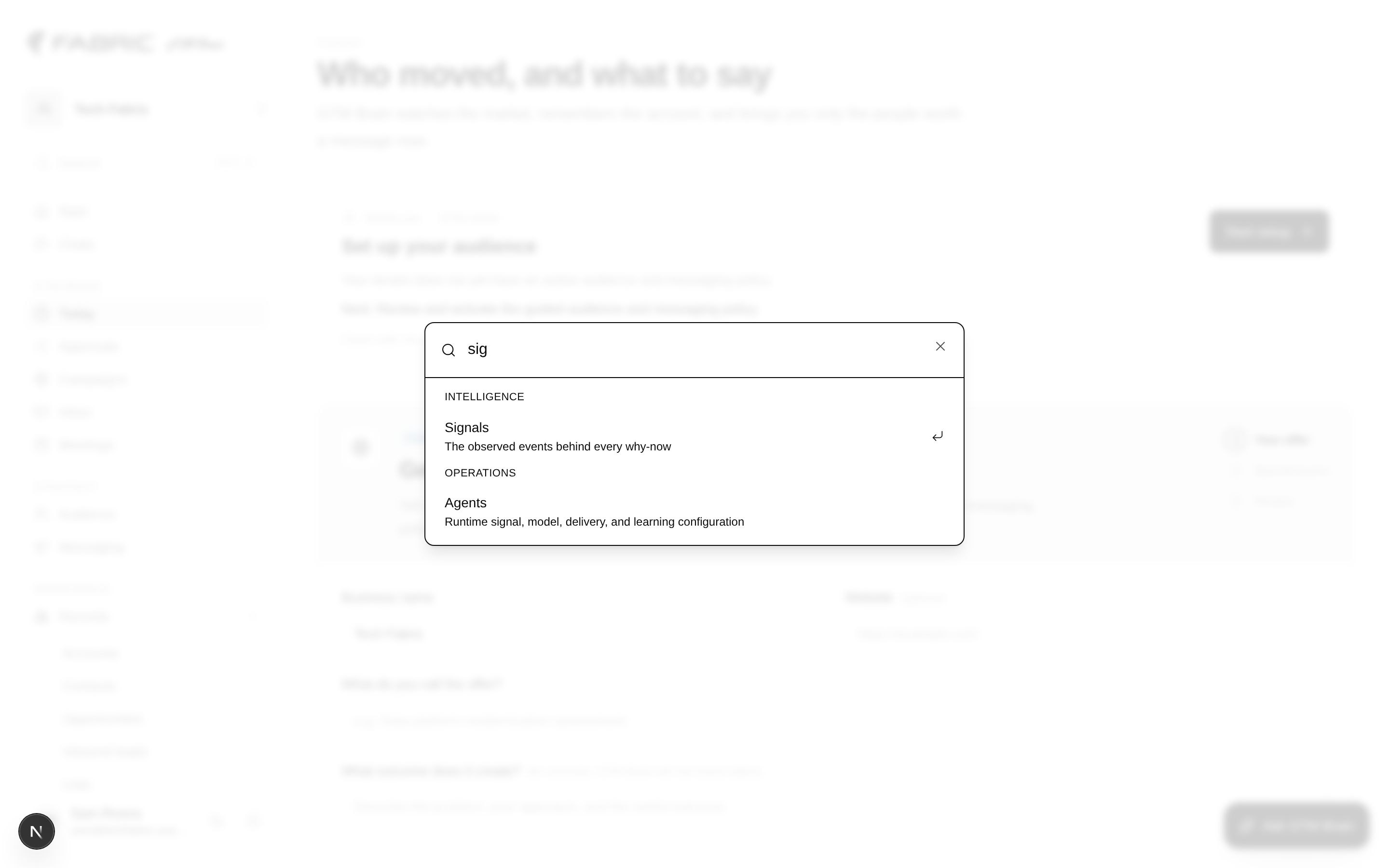
The palette also matches on what a screen does and on names it used to have, so icp finds
Audience, apollo finds Integrations, cursor finds Connect an agent, and shortlist
finds Approvals. Use the arrow keys
to move and Esc to dismiss.
This is the fastest way to reach anything inside Workspace without opening a group.
Find leads lives on Today
Outbound discovery is a panel on Today, not a sidebar row, because it is something you reach for occasionally rather than every morning.
- Open Today.
- Expand Find leads.
- Choose an audience-generated example, or describe a cohort in plain language.
- Select Find leads to preview named people and their fit evidence.
Selecting an example only fills the query. GTM Brain does not query Apollo or reserve provider-read credits until you choose Find leads.
Common operator journeys
“What should I do next?”
- Open Today.
- Work the top item in the queue. Each row states the problem, the impact, and one next step.
- Rows marked Agent working need nothing from you; rows marked Needs you do.
“Who should we contact?”
- Open Today and expand Find leads.
- Select an example or describe a cohort in plain language.
- Select Find leads to preview named people and fit evidence.
- Review the selection before the governed import.
“Can I safely run this campaign?”
- Open Campaigns and follow the single next action in the campaign journey.
- Let the background reviewer check the campaign, then approve the content that passed.
- Select Confirm campaign details, then Run safety check.
- Return to Today, confirm Dry run ready and Live delivery off, and start the dry run.
“Why is this account in play?”
- Open Workspace → Intelligence → Pipeline, or press ⌘K and type
pipeline. - Open the account record.
- Read the latest signal and
why nowverdict. - Check previous touches and outcomes before approving another message.
“What happened after a reply?”
- Open Inbox to review the classifier proposal.
- Confirm meeting, unsubscribe, or dismiss.
- Open Workspace → Records → Accounts to see the recorded outcome in context.
Search and filtering inside a screen
Accounts, Signals, Pipeline, Artifacts, Skills, Lists, Inbox, Visitor intent, and Inbound leads each provide local search and state or bucket filters. Filtering changes the visible view; it does not change campaign policy or exclude an account from a future pass. Audience, suppression, and workflow policies control whether the system can act.
Older links still work
If you have a bookmark from an earlier release, it redirects rather than breaking:
| Old URL | Now |
|---|---|
/gtm/replies | Inbox |
/gtm/settings | Integrations |
Continue with How it works for a plain-language walkthrough, or Run your first campaign for the complete dry-run path.