

Run your first campaign
Connect providers, validate safety gates, run a dry campaign pass, and review the first shortlist without sending live outreach.
This guide takes a new organization from an empty workspace to its first dry-run campaign pass. Dry-run is the correct starting point: the brain senses, judges, drafts, and waits for approval, but the delivery adapter does not send a real message.
If you want a plain-language overview of how the system works before following these steps, read How it works first.
Before you start
Open your GTM Brain URL and sign in. Cloudflare-hosted production uses the application's configured
identity provider. A customer-managed Databricks App uses workspace sign-in and continues with that
workspace identity; Databricks CAN USE admits a user to the application but does not grant access to
a GTM tenant.
You need:
- membership in a GTM Brain organization;
- organization-admin access to configure integrations;
- an Apollo API key for live account and signal discovery;
- an Instantly API key and campaign ID if you want to validate delivery configuration;
- at least one configured sending inbox before a future live launch.
Your GTM Brain organization is the tenant boundary inside either deployment target.
1. Connect the signal source
Open Workspace → Operations → Integrations and choose Apollo. Enter the API key, then select
Connect & test. Selecting the Operations row opens the group in place; it does not navigate you
away. You can also press ⌘K and type apollo.
The test distinguishes an invalid credential from a network or provider failure. Once connected, the next campaign pass uses the organization's credential instead of deployment-level fallback settings.
Apollo supplies:
| Input | How GTM Brain uses it |
|---|---|
| ICP-filtered companies | Creates the initial account universe |
| Relevant job postings | Produces job buying signals |
| Recent funding rounds | Produces funding buying signals |
| Contact lookup | Attaches the best available person to actionable signals |
See Integrations for field-level configuration and resolution order.
Find and import the first people
Open Today and expand Find leads. Choose an audience-generated example or enter an exact company domain, then select Find leads. The preview may use one bounded Apollo firmographic enrichment when Organization Search hides the employee count or headquarters country required by your active ICP. The counter on the preview reports remaining Apollo read credits; choosing an example by itself spends nothing.
Review the named people, employer, buyer-title match, and contactability state. GTM Brain never shows the email address in preview. Select up to ten people and confirm the import. Import is an explicit governed mutation: the server re-checks the active ICP, current employer, firmographics, and work identity before creating the account and contact records. Apollo can use a canonical company domain that differs from the person's verified brand email domain; GTM Brain accepts that only when the current-employer provider ID still matches the reviewed company.
Your deployment's versioned ideal customer profile determines which companies are eligible. Apollo persists approved company attributes with each observation; missing required firmographics cause the judge to abstain instead of guessing. The documentation does not publish any organization's private thresholds or targeting strategy.
2. Connect delivery in safe mode
Open Workspace → Operations → Integrations, choose Instantly, and provide:
- API key — authorizes the organization to use its Instantly account;
- Campaign ID — identifies the campaign and inbox pool that will receive approved leads.
Select Connect & test. A valid API key with a missing or invalid campaign produces a different error from a bad API key, which makes configuration failures easier to diagnose.
Connecting Instantly does not make the first pass live. Passes started from the application currently
use live: false, and every resulting draft still requires human approval.
3. Configure the reply webhook
In the Webhooks section of Integrations:
- Select Generate secret.
- Copy the displayed Instantly webhook URL.
- Add the URL to Instantly's webhook configuration.
- Configure reply, bounce, and unsubscribe events.
- Store the secret where the vendor can send it either as
x-gtm-webhook-secretor thesecretquery parameter.
Replies are idempotent. If the same vendor event is delivered twice, the source ID prevents a duplicate account outcome.
4. Create and check the campaign
Campaigns are not tenant singletons. Create a distinct campaign ID for each audience, offer, region, or experiment you want to operate independently. Any number of campaign IDs may be active concurrently; each campaign keeps one active version, its own daily cap, exact ICP and content bindings, approvals, and outcome attribution. Replacing one campaign version does not pause another campaign.
For the two initial motions, select Databricks Health & Governance Assessment for verified Databricks accounts and Forward-Deployed Engineering Discovery for custom software or AI product leaders. The FDE campaign does not require Databricks adoption.
Open Campaigns, choose a campaign, and use its seven-part workspace. Your next step shows one recommended action at a time while every section remains revisitable:
- Idea — campaign purpose, governed offer, daily limit, and current outcome summary.
- Context — approved tenant knowledge and exact source hashes available to people and agents.
- ICP — the exact active ICP version pinned to this campaign.
- Audience — matching companies and named prospects, with preview before any metered reveal.
- Messaging — the durable email-sequence working copy and its review state.
- Review — all exact artifact revisions, independent evaluations, approvals, and the execution manifest.
- Launch — sender readiness, safety check, natural-person approval, and controlled Instantly delivery.
GTM Brain appears at the bottom of every section with the current campaign and section already selected. You can brainstorm, attach a source, or request a revision. Chat text is not silently stored: a durable change always uses a governed action and returns a saved-version receipt. Technical campaign IDs remain available under Review → Technical references, but are not required for ordinary work.
The normal progression is:
- Choose the offer, campaign name, purpose, and daily limit, then select Create campaign.
- Select Send for background review. GTM Brain submits the exact campaign content and checks the audience, evidence, claims, tone, and safety rules in the background.
- If the checks pass, select Review and approve on each current content row. If a check needs judgment, the affected content is held for you without blocking unrelated campaign work.
- Select Confirm campaign details, then Run safety check.
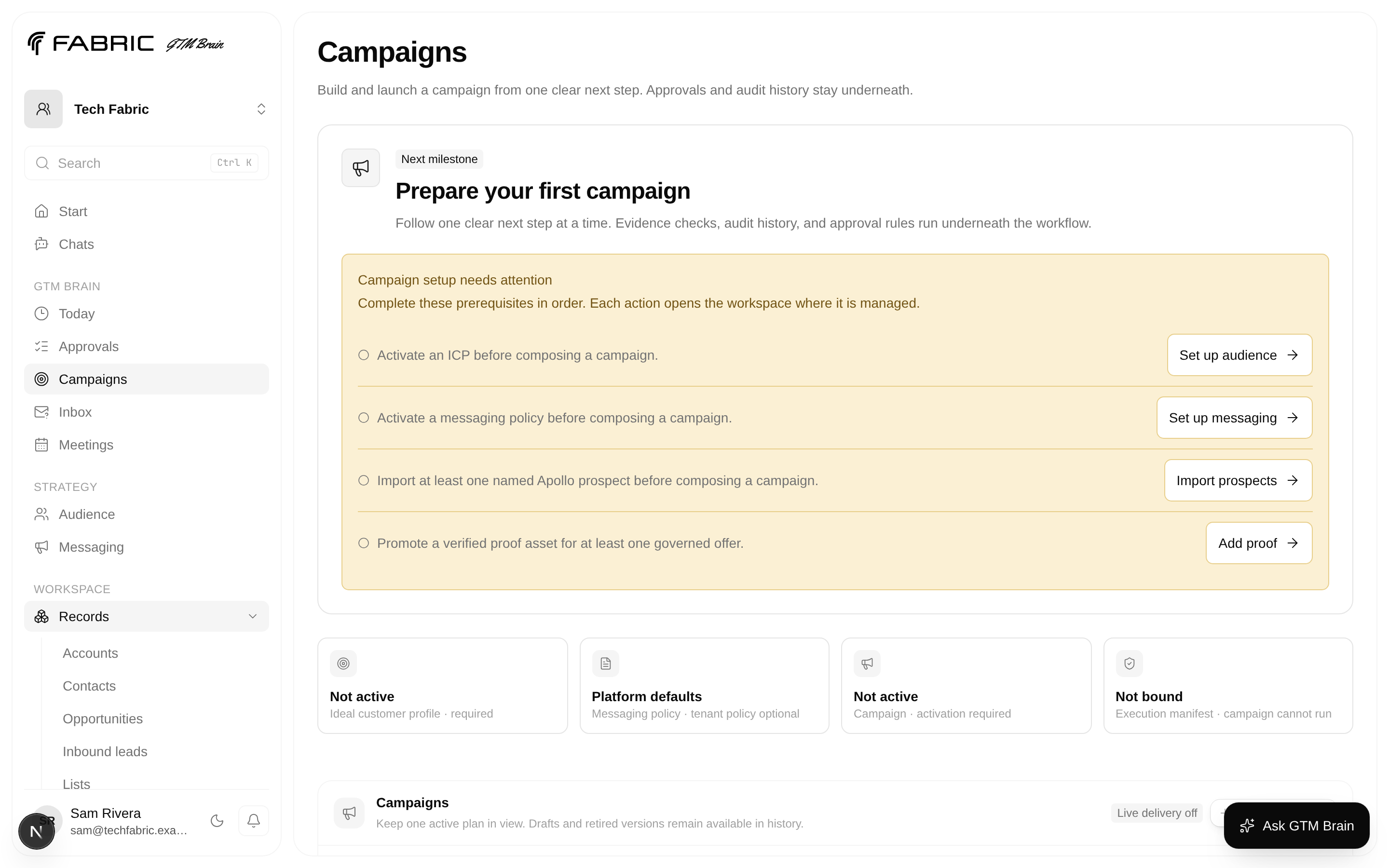
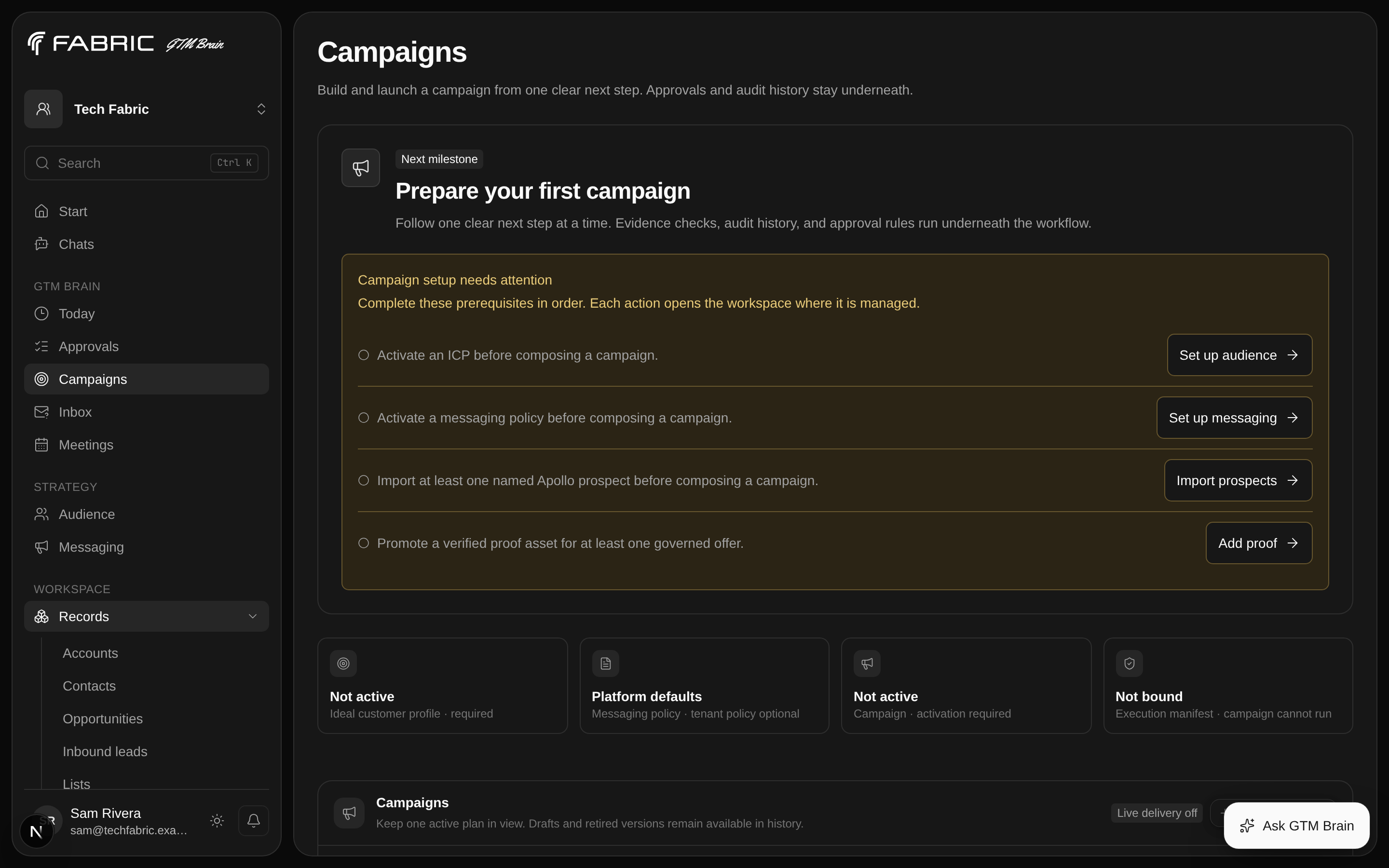
The workspace derives progress from the campaign, ICP, knowledge, cohort, artifact, approval, and provider projections rather than maintaining a second checklist database. Content rows open the exact artifact in Workspace → Operations → Artifacts; Confirm campaign details, Run safety check, Prepare final campaign, and Approve campaign appear in the matching Review or Launch section. A blocked section explains which earlier requirement must finish. Changing an ICP or source never silently rewrites a reviewed cohort or artifact; the affected work must be revised and approved again.
The product still records exact revisions, independent evaluations, approvals, and the locked execution version underneath. Those technical details are available on demand, but you do not need to copy IDs or hashes to launch. A campaign that has not passed these checks cannot activate or run.
If the panel shows Enable background review, a workspace admin must complete that one-time setup under Workspace → Operations → Agent operations. The bounded reviewer can check content; it cannot approve content or send outreach.
Move from the safe test to the first live send
An active dry-run version is an immutable safety record; it is never changed into a sending campaign. When Launch becomes current, its journey row gives you one action at a time:
- Select Prepare final campaign. This governed action creates the next version as a non-sending draft and copies only the exact artifact identities and revisions named by the safe test's locked manifest. The action unlocks only after the safe test has produced at least one governed draft; activating a dry-run version alone is not completion evidence.
- Select Send for background review, inspect any exception, and approve the four live-version artifacts. Safe-test approval is evidence, but it is not silently reused as live approval.
- Select Confirm campaign details, then Approve campaign. This is the explicit human decision for the exact reviewed version.
- Select Launch campaign. GTM Brain finds one qualified prospect and prepares a personalized email. You do not need to copy IDs, contact an operator, or open an infrastructure runbook.
- When Review first email appears, review the recipient and message. Nothing is delivered through Instantly until a person approves that email.
The simple launch experience still uses the governed action pipeline underneath. It binds the exact tenant, campaign version, and manifest; expires automatically; starts with one prospect; records the actor and audit evidence; and rechecks suppression, eligibility, proof, limits, and human approval at the final delivery boundary. Those controls are intentionally not operational chores for GTM users.
For a dry run, the product readiness card is the user-facing gate. It shows Dry run ready only when the active campaign is dry-run and pins a current execution manifest.
You do not need a terminal for this
Before a live launch, a platform operator separately runs the repository go-live gates. That is their task, not yours, and it is documented in the production runbook. Nothing in this guide requires a command line.
5. Start a campaign pass
Open Today. In the campaign readiness card, confirm Dry run ready and Live delivery off, then start the dry run. The action uses the exact locked campaign version and cannot send email.
The application first admits gtm.request_campaign_pass through Fabric Platform, then starts a
tenant-scoped Temporal operator workflow with an ID shaped like:
gtm-campaign-operator-<organization-id>-<idempotency-digest>The operator validates the exact campaign version and execution manifest before starting the V2 child
pass. The pass proceeds through sensing, judgment, and drafting using the bound approved policies. It then parks durably in
awaiting-approvals; closing the browser or restarting the Databricks App does not discard the queue.
6. Review the shortlist
Use three views together. The first two are in Workspace; Approvals is a top-level sidebar row.
- Workspace → Intelligence → Signals — verify the observed job, funding, company, or social event.
- Workspace → Records → Accounts — inspect the full account timeline and prior contact history.
- Approvals — compare the score, play,
why now, trigger, subject, and message body.
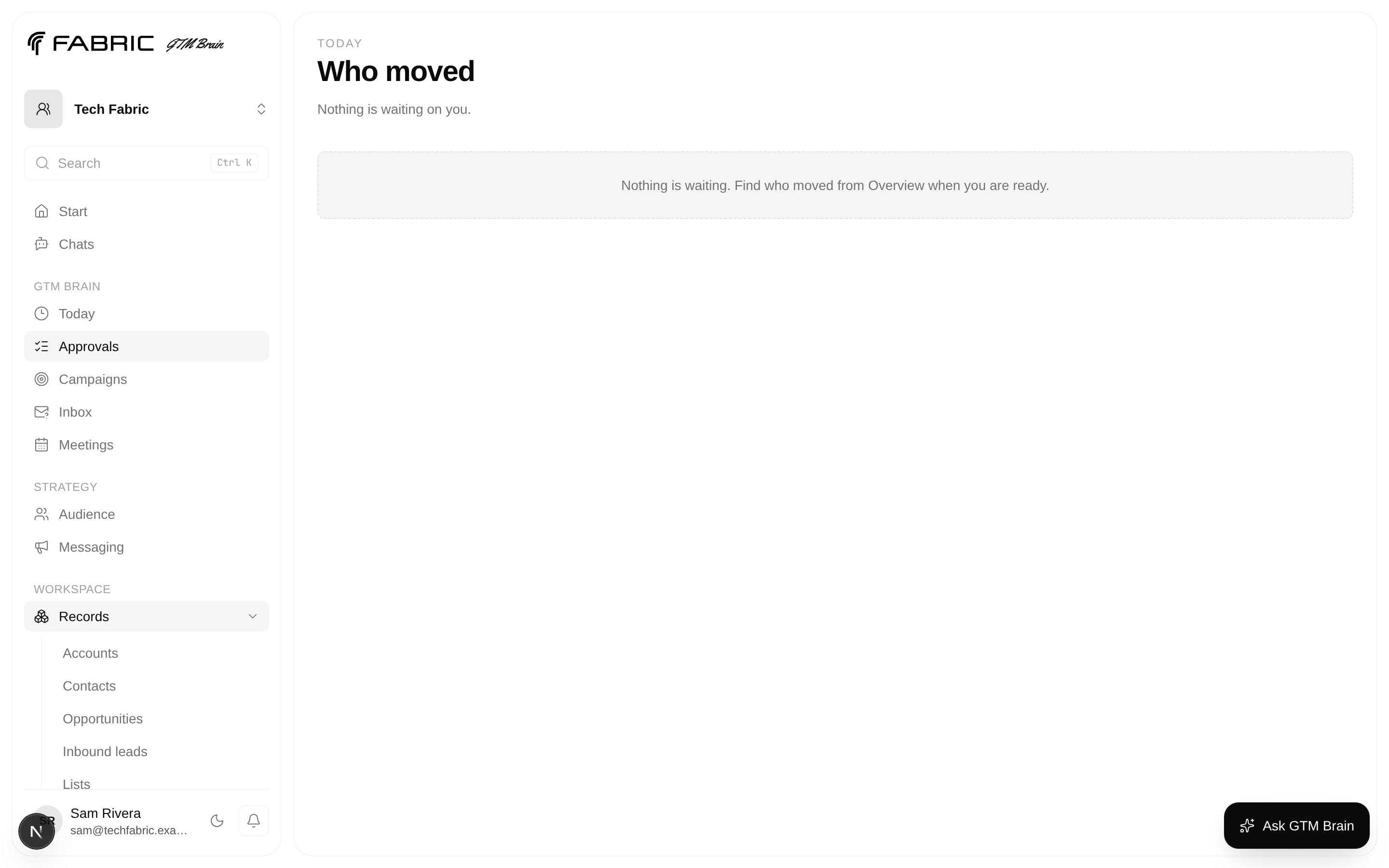
Reject any draft whose message cannot be justified by the underlying signal. A polished message with a weak reason to act is still a weak opportunity.
Verify governed positioning
Each organization maintains its own offers, proof assets, and approved capability statements. Drafts lead with the account's exact observed trigger and may use only the proof wording approved for the selected offer. They must not infer endorsements, customer adoption, guaranteed outcomes, savings, or compliance.
Before reviewing a draft, confirm that its proof asset is verified, unexpired, and compatible with the offer. Tenant-specific positioning belongs in the governed proof catalog, not in public product documentation.
7. Approve safely
In the approval workspace you can:
- select any shortlist account to understand its qualification result;
- open Why this account to inspect deterministic score dimensions and source evidence;
- open Suggested play to inspect the offer and governed proof;
- edit the subject or body, preview it, compare changes, and select Approve edited;
- approve the original draft with an explicit dry-run or live consequence label;
- reject the draft with a recorded reason.
The decision becomes a Temporal signal. The workflow then runs the governed action pipeline, including suppression, state transition, ramp, and delivery checks. Approval is necessary, but it is not permission to bypass policy.
What success looks like
After the dry pass:
- Today shows the work that needs attention and the campaign readiness state;
- Workspace → Intelligence → Signals contains deduplicated source events;
- Workspace → Intelligence → Pipeline places accounts in the state produced by governed actions;
- Workspace → Records → Accounts shows the complete evidence and touch timeline;
- Workspace → Operations → Agent operations reports the actual signal, model, delivery, and learning configuration;
- the audit store contains the verdicts, decisions, policy outcomes, and simulated delivery results.
Next, learn how a campaign pass works or use the production runbook to prepare a controlled live launch.
Configure your ideal customer profile
Define the versioned company, buyer, evidence, and exclusion policy that controls which accounts GTM Brain can qualify.
Navigate the application
A map of the GTM Brain sidebar, the four Workspace groups, the command palette, and the routes a revenue operator actually walks each day.